How can I transform my lessons with Google Apps for Education?


One thing I think is often missing in the conversation about tools such as Google Apps is how to actually use them in day-to-day teaching. Knowing what a tool can do in the abstract is far different than seeing the actual concrete example of how it fits into the classroom curriculum. 
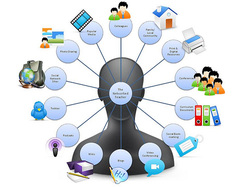

Here is a quick snapshot of examples of applying Google Apps in a real classroom:

Docs:

  • Lab notebook shared by lab team
  • Collected poems, stories, recipes, or drawings
  • Reflection or creative writing journal, shared with teacher
  • Peer critique, revision, or editing of written work
  • Collaborative planning (with projector)
  • Students write practice questions, problems for each other
  • Make links of materials used in class to post online (students who are absent, need another copy)


Spreadsheets:

  • Collect data during research or labs from multiple people
  • Organize topics, jobs, or differentiated tasks
  • Create rubrics
  • Collect sources from internet research
  • Organize what students have checked out
  • Dividing tasks for a project or for the classroom


Presentations:

  • Make PowerPoints mobile by turning them into a web link
  • Make a collection of videos relevant in class, with additional information
  • Make a slideshow of pictures and post on a site
  • Embed slides on site so students can quickly review information
  • Replace poster projects with a slideshow
  • Use in concert with a voice-over to produce video instructions
  • Replace written book reviews with pictures-only presentations to accompany a talk
  • Assign each student a portion of the whole, and have them all make slide(s) on same presentation, then assign for students to use for review or further discussion


Forms:

  • Collect information from students easily and quickly
  • Project peer evaluations
  • Quick formative assessments
  • Interest surveys
  • Collection of data, sources, or other info you collect over and over
  • Parent info
  • Voting for student council, class leaders, etc
  • Checking in or out materials, books, etc. 
  • Bathroom/locker check in/out
  • Book reviews that can be shared with other kids (like Amazon customer reviews)


Calendar:

  • Share classroom calendar with parents and students
  • Share calendars with others in your team, group, or department
  • Assignment calendar for students
  • Embed on site for others to see
  • Students can create one to build timelines for history
  • Digital datebook


Sites:

  • Share daily or weekly information with students or parents
  • Flipped classroom videos
  • Have students use to show learning on a subject (groups or individual)
  • Centralize information for your department, team, or group
  • Collect digital materials for class
  • Have students create a portfolio to showcase their learning
Drive in general:
Make a digital version of anything and post online for students who have missed class or need review. Especially helpful when large groups of students are gone for activities. Interconnect almost anything you create with anything else. Connect docs with calendar, embed slideshows in docs, add spreadsheets in presentations, add a form to a doc or email. Limitless. And that is just the beginning. Add more tools to build a web of easy, engaging, relevant work with students.


Any of these can be learned in a short amount of time. Please let Tony know if you have a project or lesson that would benefit from the implementation of any of these and he can assist.


Why Google Apps? Why not Word, Powerpoint?

As we are a Google school, it is important to understand just why using Google tools is a good thing, and why we will eventually move away from using Microsoft products like Word and Powerpoint.

There are three main reasons why Google Apps for Education are the best choice for most education tasks:

1. Mobility. Since the application and the product are both online, any document can be worked on or viewed from any device with an internet connection. This means that work that is not completed in the lab setting can be finished at home, projects begun at home can be finished in the media center, and people can move from computer to computer and back again without loss of information. Another key part of this is the auto-save feature on most Google Apps, such as Docs. With an open internet connection, what is input is automatically saved every few second or so, which means that there is far less chance of losing unsaved work in the event of a computer glitch, power outage, or forgetting to save. There is no need for auto-recovery. Just need to get logged in again, and all set!

2. Collaboration. The greatest power in Google applications is that more than one person can edit a documents, spreadsheet, or presentation at once, in real time if desired. Students can easily collaborate on written projects, or make a presentation with several people making slides at once. Just about everything can be shared with multiple users. Teachers can co-own a document with a student, and assist them without transfer of file or paper. The revision history feature allows for anyone to see a color-coded record of changes that were made by different people, allowing teachers to see who has contributed and what they have contributed.

3. Cost. The entirely of the Google Apps for Education suite is free for educators. That comes with generous cloud storage and a host of interconnected applications that work together well. Because of this, a majority of public school districts and post-secondary institutions have adopted this set of tools for their staff and students. In addition, access for students is more equitable. Since there is no paid application, students need not have a powerful computer or current applications at home, just an internet browser.

As we continue to support these tools in our district, we will continue to see the benefits of more and more people collaborating with these tools. The best result is when teachers can integrate the use of these tools in their instruction to offer rich, collaborative learning experiences for their students.

For more info, please see the following video:


Do I need an LMS? If so, which one?

Even though you may have never heard the term LMS before, you already know what they are! LMS stands for Learning Management System. If you have ever worked with, or even seen, Edmodo, Moodle, Schoology, Blackboard or D2L, you know what a LMS is. LMS help teachers to manage the business of teaching in a more efficient way. While each LMS offers slightly different functions, some of the key elements of all LMS are:

  • Ability for students to post assignments online for teacher review
  • Ability to take auto- or manually-graded tests and quizzes online
  • Grade collection, sometimes exportable to a parent portal like Skyward or Infinite Campus
  • Online discussion areas
  • Ability for teachers to post assignments, files, and links for student use
  • Mobile access
In Princeton we have some teachers using Edmodo, particularly at the middle school, and probably have a couple of people using Schoology. I am not aware of anyone using other LMS, some of which require a paid subscription.

Should I be using a LMS? Maybe. A few things to consider:

1. LMS are geared toward direct student interaction, which means that they are less and less effective the younger the student. While Edmodo boasts efficient usership even at the early primary grades, LMS generally do not become truly relevant until students are in 3rd grade or older. In our case, that would mean that LMS would be somewhat impractical at South, but could be looked at for North students and above.

2. Some LMS are more functional for different grade levels. Edmodo os matched very well for middle grade students. Its Facebook-style interface is easy for students to navigate, yet the program is really powerful and allows students to stretch learning beyond the classroom easily. Conversely, an argument could be made that Schoology is better suited for high school. 

3. If you have high school students, they will have to use a LMS in just about any post-secondary schooling, whether that is tech school, community college, or university. MNSCU, the state college consortium in Minnesota, uses D2L, which is very similar to Moodle or Schoology. These students should get exposure to uploading digital assignments and online directed discussions before graduation.

4. For some, the classroom website meets all of the same needs as the LMS, reducing or eliminating the need to have one at all. Depending on how you use your site to connect with students, you may have created your own personal LMS application!

5. For the student, it can get very challenging to manage different systems with each of their teachers. Some consistency within teams, grade levels, or even buildings is a benefit for the student.

An additional consideration is the new Google Classroom application. It has only been released widely to teachers and students for a short time, yet in a Google district (as we are), it would seamlessly interact with our drive, docs, presentations, and calendars. We have at least one teacher piloting it this week (Sue Vanhooser), and I intend to watch closely her success and challenges with this system. The feedback we get on this pilot will help us determine the best way to proceed in getting teachers the tool they need to be more effective. Good Luck Sue!


Welcome to the 21st Century!

The term 21st century learning has been bandied about since before the century began, and yet we
still continue to use it, now a considerable stretch into the 21st century.  The reason this term has endured for some 20 years is that despite many advances, we are only now seeing education begin to catch up to the technology of the time.

Many of our educational practices better resemble 20th century schooling. Some even hark back to the 19th century.

The challenge of 21st century teaching and learning is to help instructional methods and the experience of learning in public schools to evolve and stay relevant in a world where the whole of human knowledge is available to every kid with a smartphone.

In order to do this, The International Society of Technology in Education (ISTE), the largest consortium of progressive educators has worked with teachers and students all over the world to outline key aptitudes needed in schools today. The first component is featured below:


These standards are becoming more and more crucial for student development, and yet they are very commonsense and reasonable. They mirror state and national standards for content and curriculum, while adding the key dimensions that make living in today's (and tomorrow's) world successful. Consider the impact these make on learning in a classroom, and continue to consider the 21st century learner in the honorable and challenging work that is done is the classroom!